Timeline View
The event timeline is one of three sections in the Order Lifecycle field - see Field Type for how it fits alongside the summary cards and Order analysis panel, and how to add the field to your order layout. This page covers the timeline itself: filtering, sorting, event cards, and the change diffs.
Summary Cards
Four cards show the order's key conversion metrics:
| Card | Description |
|---|---|
| Time to Convert | From the first cart activity to order completion |
| Checkout Duration | From checkout started to the order being paid |
| Cart Items | How many line items were added and removed |
| Customer | New or returning, with a link to their previous order count |
Below the cards, a bar shows the order's Started and Completed timestamps with a connecting line, plus its origin and IP address (if collectUserIp is enabled). Any card or field that hasn't happened yet is simply omitted rather than shown as empty.
Event Timeline
Filtering and sorting
Above the event list, a row of pills lets you filter to a single category - Cart, Line Items, Coupons, Customer, Address, Shipping, Payments, Order, or Emails - plus an All events pill. A pill only appears if the order actually has at least one event in that category, so you won't see empty filters on a typical order. A Newest first / Oldest first toggle on the right reverses the sort order.
Event cards
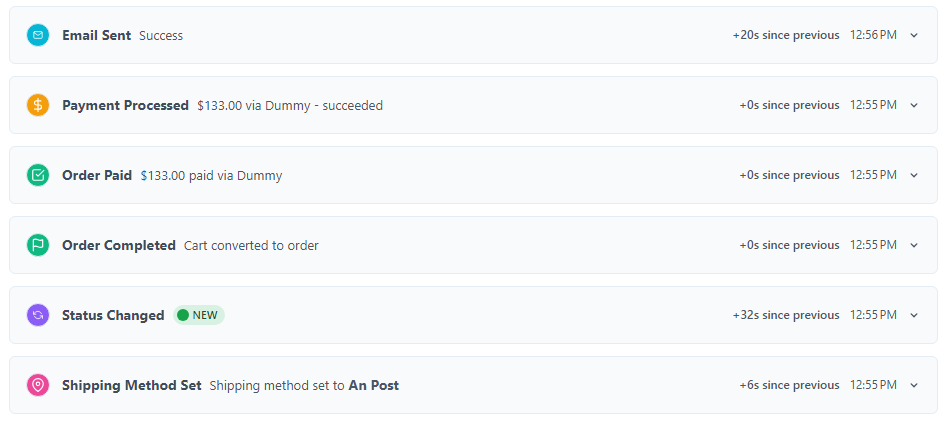
Each event is its own expandable card. Collapsed, it shows:
- Icon - colour-coded by event category
- Event name - human-readable label
- Status badge - only when it adds information beyond the title (see below)
- Message - a short description of what happened
- Time since the previous event (e.g.
+7s since previous) and the event's own time - A date, but only if the order's timeline spans more than one calendar day
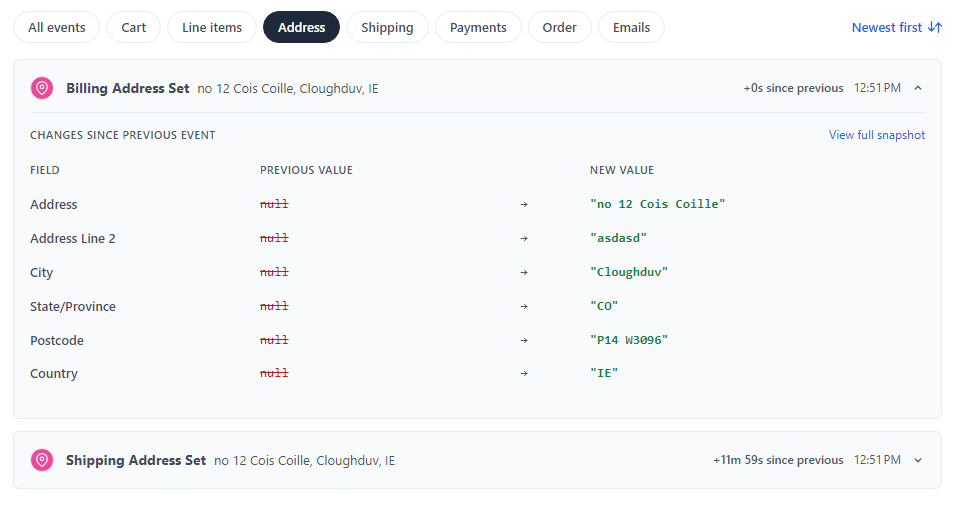
Expanding a card reveals "Changes since previous event": a table of exactly which fields changed on the order, shown as their previous value struck through and the new value alongside it. If nothing changed, it says so plainly instead of showing an empty table. A View full snapshot link next to the header reveals the complete raw JSON snapshot underneath.
Event Categories and Icons
Cart Events (Blue)
- Cart Created - message notes whether the customer was a guest or already registered
- Cart Updated
- Line Item Added / Removed / Updated - message shows the product and variant name (e.g. "Ballpoint Pen - Grey"), not the raw SKU
Order Events (Green)
- Order Completed - a fixed "Cart converted to order" message, with a distinct flag icon so it doesn't get confused with Order Paid
- Order Paid - message shows the amount paid and gateway, e.g. "€60.00 paid via Stripe"
- Status Changed
Payment Events (Orange/Red)
- Payment Attempt - only logged when the attempt fails; a successful first-try payment produces no attempt entry
- Payment Processed - message shows the amount, gateway, and outcome, e.g. "$60.00 via Dummy Gateway - succeeded"
- Payment Authorized
- Payment Captured
- Payment Refunded
- Payment Transaction
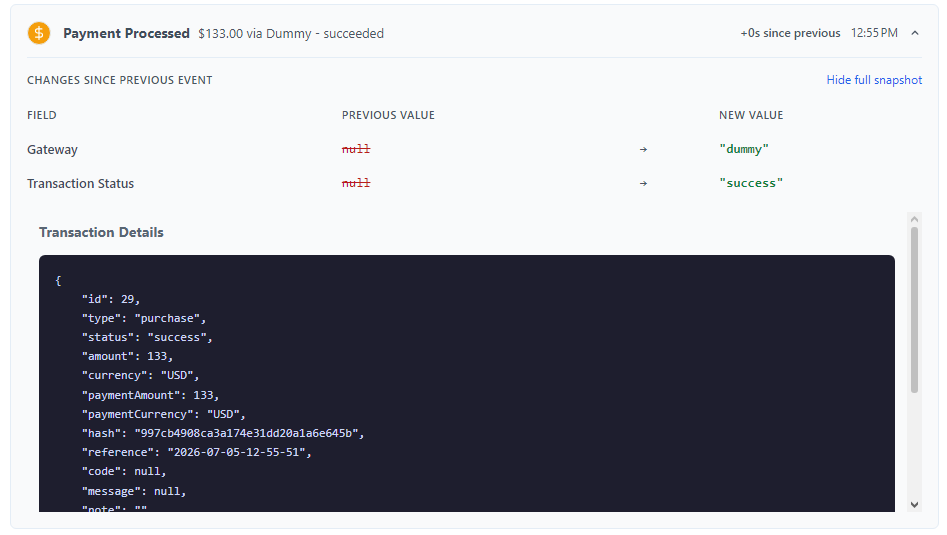
The diff for any payment event also includes the transaction's Gateway and Transaction Status, since those live on the transaction record rather than the order snapshot.
Address Events (Pink)
- Shipping/Billing Address Set - message shows the address itself (no "Shipping address set:" prefix, since the event title already says that)
- Shipping/Billing Address Removed
The diff for an address event is built from that event's own before/after data rather than the order snapshot, so it always shows the correct field-by-field changes (name, address lines, city, state, postcode, country) even when shipping and billing addresses are both saved in the same request.
Customer Events (Purple)
- Customer Set - Customer email assigned to the order
- Customer Removed - Customer email removed
Coupon Events (Yellow)
- Coupon Applied - message shows the coupon code
- Coupon Removed
Shipping Events
- Shipping Method Set
Email Events (Cyan/Red)
- Email Sent / Email Failed - message shows the configured email's name and who it went to, e.g. "Order Confirmation → [email protected]"
Checkout Events
- Checkout Started - message notes whether the customer was a guest or registered at that point
Full Snapshot
Clicking View full snapshot on any event reveals the complete JSON snapshot captured at that moment:
{
  "order": {
    "id": 123,
    "number": "abc123",
    "isCompleted": false,
    "dateOrdered": null,
    "couponCode": null,
    "totalQty": 2,
    "totalPrice": 49.99,
    "totalShippingCost": 4.99,
    "currency": "EUR",
    "statusId": 1,
    "statusHandle": "pending",
    "shippingMethodHandle": "standard",
    "shippingMethodName": "Standard Shipping",
    "shippingAddressId": 456,
    "billingAddressId": 789
  },
  "customer": {
    "email": "[email protected]",
    "isGuest": true,
    "customerId": null,
    "userId": null
  },
  "lineItems": [
    { "sku": "WIDGET-A", "description": "Widget - Blue", "qty": 2, "subtotal": 49.99 }
  ],
  "discounts": [],
  "addresses": {
    "billing": {
      "firstName": "Jane",
      "lastName": "Doe",
      "addressLine1": "1 Main Street",
      "addressLine2": null,
      "locality": "Dublin",
      "administrativeArea": null,
      "postalCode": "D01ABC1",
      "countryCode": "IE"
    },
    "shipping": { "...": "same shape as billing" }
  },
  "payload": {}
}
Payment and email events also carry the relevant transaction or email data in the payload key.
Empty State
When no events have been recorded yet, the timeline just shows:
No Order lifecycle events yet
Events will be recorded as customers interact with this order.
Technical Details
Timeline data is built by OrderLifecycleLogger::getTimelineForOrder(), which is recomputed on every page load - nothing about the diff or filtering is cached or stored. See Field Type → Technical Details for the field class itself and its guard clauses.
Best Practices
- Debugging - Expand a card's full snapshot to see the exact order state at the time of a failed payment or unexpected behaviour
- Customer Support - Reference the timeline when looking into order issues with customers
- Performance Analysis - Use the summary cards to spot checkout bottlenecks
Related Documentation
- Field Type - The field as a whole, including where to add it and its empty/error states
- Event Tracking - What events are tracked and how
- Configuration - Enable or disable event categories
- Statistics - Understanding the timing statistics