Field Type
Order Lifecycle adds one custom field type - Order Lifecycle Events - that you attach to your Commerce order field layout. This page covers the field itself: where it goes, what it shows, and how it behaves. For the detail inside each section, see Timeline View, Statistics, and AI Insights.
Adding to Your Order Layout
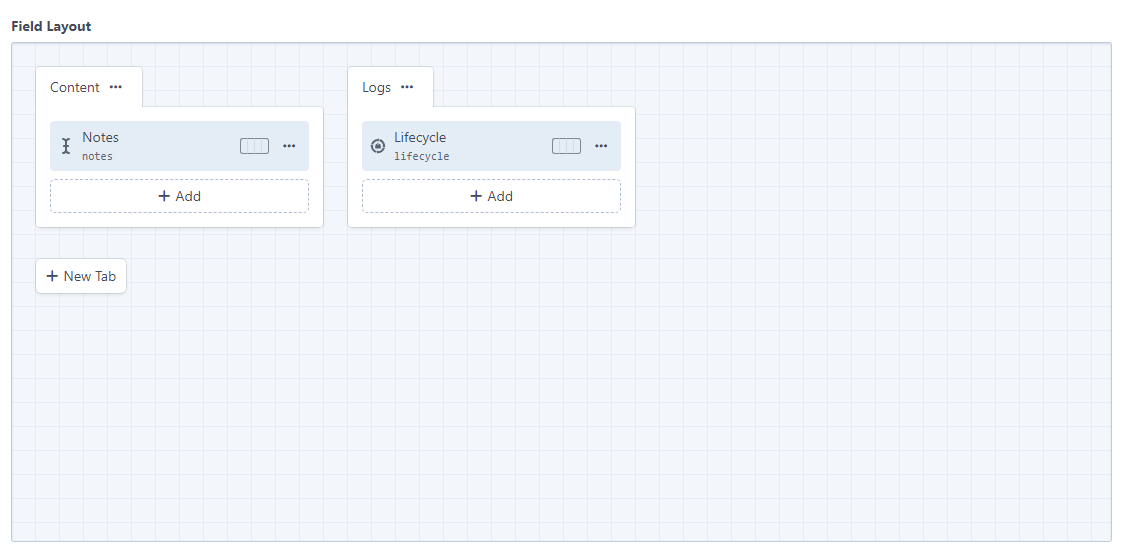
- Go to Settings → Fields → New Field
- Give it a name, e.g. "Order Lifecycle"
- Set the field type to Order Lifecycle Events
- Save the field
- Go to Commerce → System Settings → Order Field Layout
- Drag the field into your layout (a dedicated "Logs" or "History" tab keeps it out of the way of order editing)
- Save the layout
There's nothing to configure on the field itself - see Field Settings below.
What It Shows
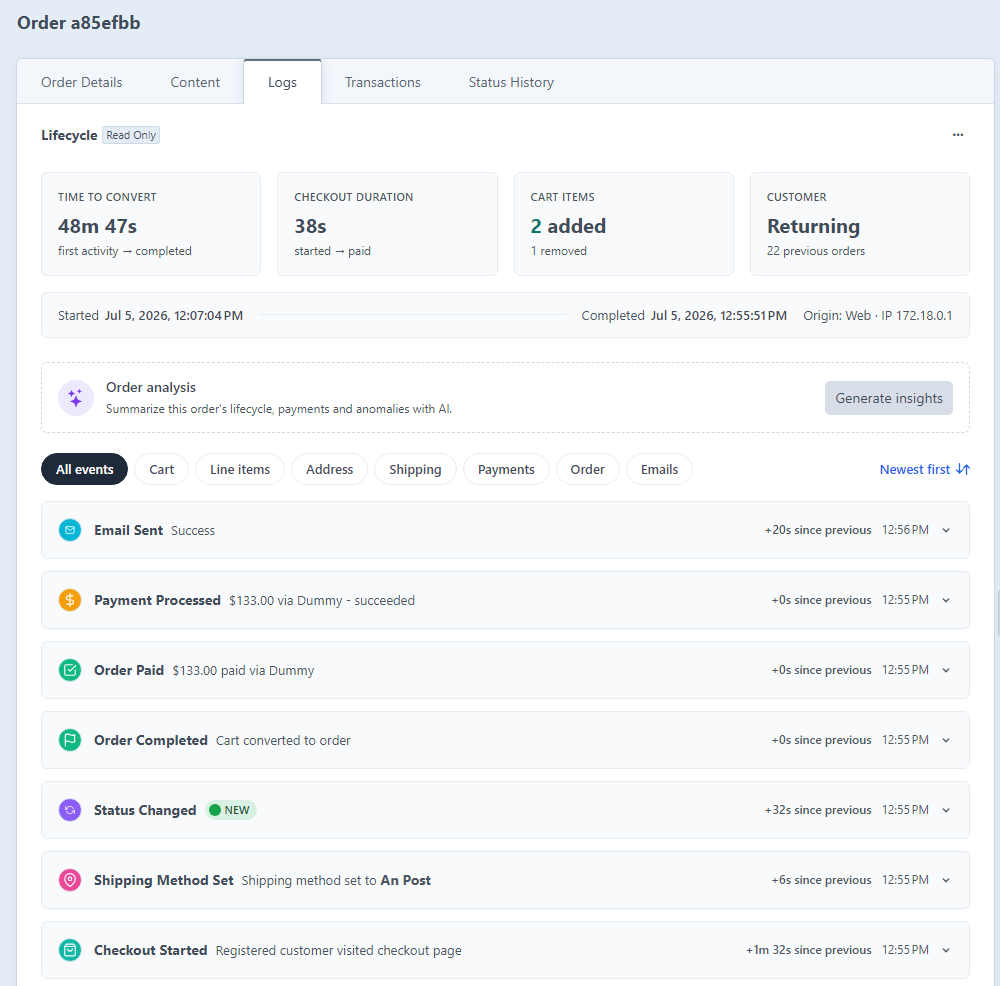
The field renders up to three sections, top to bottom, depending on your plugin settings and whether the order has any recorded activity:
| Section | Shown when | Full detail |
|---|---|---|
| Summary cards |
showLifecycleStats is enabled and the order has at least one event | Timeline View → Summary Cards / Statistics |
| Order analysis | An Anthropic API key is configured | AI Insights → Per-Order Insights |
| Event timeline | The order has at least one recorded event | Timeline View |
Field Settings
The field has no settings of its own - there's nothing to configure in the field's own settings screen when you add it to a layout. Everything that changes what the field shows or how it behaves lives in the plugin's own settings at Settings → Order Lifecycle instead (event logging toggles, the stats widget toggle, the Anthropic API key, and so on) - see Configuration for the full list.
Requirements & Restrictions
- Craft Commerce order elements only. The field renders a warning note if it's added to a field layout for anything other than a Commerce
Orderelement (a product type, an entry type, and so on). - Read-only. The field doesn't store or accept any input - it has no content column (
hasContentColumn()returnsfalse) and nothing is saved against it when the order is saved. - Not translatable. The field uses
TRANSLATION_METHOD_NONE, since there's nothing per-site to translate - the same recorded events show regardless of site. - One per layout is enough. Since the field has no settings and always shows the same order-wide data, adding it more than once to the same layout just repeats the same content.
Empty & Error States
The field checks a few things before it renders anything, and shows a plain note instead of a section if a check fails. These are checked in order, so the first matching condition wins:
| Condition | What shows |
|---|---|
| Craft Commerce isn't installed | "Craft Commerce must be installed to use this field." |
| No element to render against at all | "This field can only be used with saved orders." |
| The field is attached to something other than a Commerce order | "This field can only be added to Commerce Order elements." (shown as a warning) |
| The order exists but hasn't been saved yet (no ID) | "Order lifecycle events will appear after the order is saved." |
| The order is saved but has no recorded events yet | "No Order lifecycle events yet - Events will be recorded as customers interact with this order." |
The last row is the one exception - it isn't a guard clause in the field class itself, but the template's own empty state once the field has everything it needs to render.
- Installation - First-time setup, including creating and adding this field
- Timeline View - The event timeline section in detail
- Statistics - The summary cards and dashboard-level stats
- AI Insights - The Order analysis card in detail
- Configuration - Plugin-wide settings that affect what this field shows