AI Insights
Order Lifecycle includes two AI-powered analysis features that use the Claude API to turn raw event data into plain-language summaries:
- Per-order insights - an on-demand button inside the Order Lifecycle field that looks at a single order's journey
- Store insights widget - a dashboard widget that looks at aggregate store metrics over a configurable time window
Both features are opt-in and need an Anthropic API key to work.
Setup
1. Get an Anthropic API Key
Visit console.anthropic.com → API Keys → Create Key.
2. Add the Key to your Environment
Add the key to your .env file:
ANTHROPIC_API_KEY=sk-ant-...3. Configure the Plugin
In the Craft control panel go to Settings → Order Lifecycle → Integrations and enter $ANTHROPIC_API_KEY in the Anthropic API Key field. The $ prefix tells Craft to pull the value from your environment at runtime.
Alternatively, set it in config/order-lifecycle.php:
'anthropicApiKey' => '$ANTHROPIC_API_KEY',Per-Order Insights
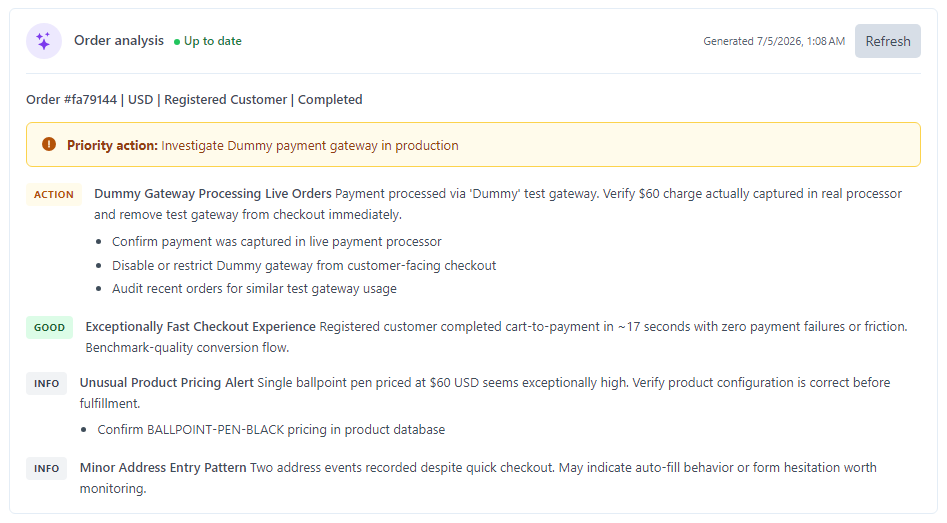
Once the API key is configured, an Order analysis card appears in the Order Lifecycle field on every order edit page (above the timeline), with a dashed border and a Generate insights button.
How It Works
- Click Generate insights on any order
- The card shows a loading indicator with a short preview while the plugin sends the order's full event timeline and key metrics to Claude
- Within a few seconds the result replaces the loading state, and the card switches to a solid border with an "Up to date" status
- The result is saved automatically - the next time you open the order, the last insight is shown without another API call
- The button label changes to Refresh once an insight has been saved. Click it any time to regenerate with the latest event data.
Presentation Style
A Per-Order Insights Style setting (Settings → Order Lifecycle → Integrations) controls how the response is presented:
- Structured (default) - a priority-action callout (if anything needs attention) followed by labeled Action / Info / Good cards, each with a short title, description, and optional bullet points. Claude is asked to reply with structured JSON for this style, which the field parses and renders.
- Narrative - a plain markdown summary with bold key figures and bullet points, rendered as-is.
If a saved insight doesn't parse as valid structured JSON (for example, one generated before you switched styles, or a malformed response), the field falls back to rendering it as narrative markdown automatically - you don't need to regenerate old insights after changing the setting.
What Is Analysed
The analysis includes:
- Event timeline (all events in chronological order with messages)
- Order total, currency, and completion status
- Customer type (guest vs registered)
- Time from first to last event
- Number of payment attempts and failures
- Number of email delivery failures
- Count of address events (includes initial address entry, not just edits)
- Count of line item modifications
What Claude Responds With
Claude comes back with 2–4 concise insights covering friction points, payment behaviour, notable patterns, and anything worth a look, in whichever presentation style is configured.
With Structured (default), each insight is a labeled card:
🟡 ACTION - Dummy payment gateway in production. Payment was processed via the Dummy gateway, which appears to be a test method visible in production.
- Verify the $60.00 charge was captured in your live processor
- Restrict the Dummy gateway from customer-facing checkout
🟢 GOOD - Exceptionally fast checkout. 17 seconds cart-to-payment with zero friction: no payment failures, address edits, or hesitation.
With Narrative, it's plain markdown with bold key figures and bullet points:
This order had 3 payment attempts before succeeding - worth checking your gateway logs for a timeout.
- The customer changed their shipping address twice during checkout
- All emails sent successfully No other anomalies detected.
Storage
Saved insights are stored in the orderlifecycle_logs table with event type aiInsights. They're left out of the timeline display but kept in full in the database alongside all other lifecycle events. The most recent insight is shown in the field.
Store Insights Dashboard
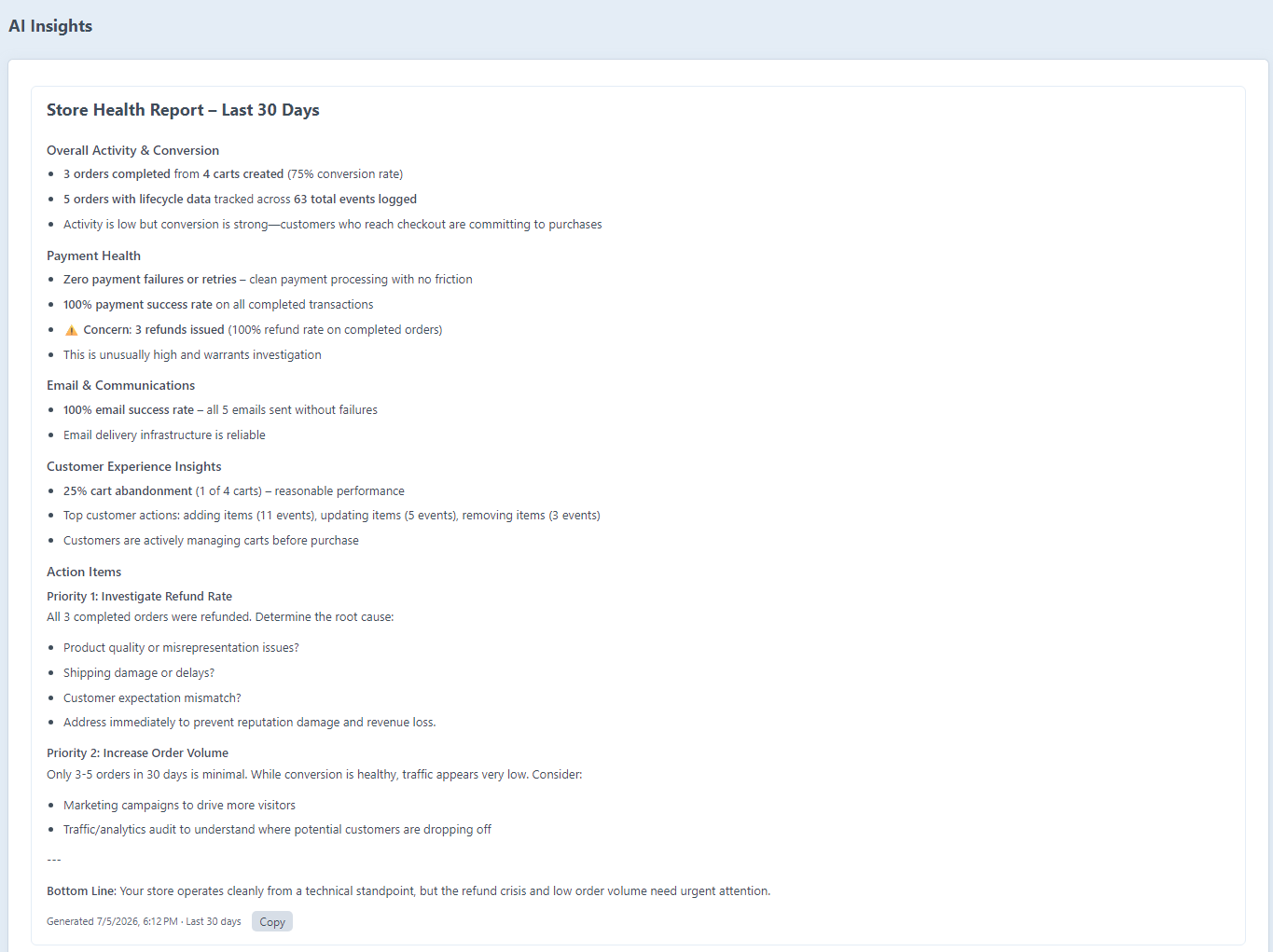
The primary place for store-level AI insights is Order Lifecycle → AI Insights in the Craft sidebar. This page only shows up when an Anthropic API key is configured.
Generating Insights
Select a time window from the dropdown (7, 14, 30, 60, 90 days, or All time), then click Generate Insights. The plugin gathers the aggregate metrics from the orderlifecycle_logs table, sends them to Claude, and shows the result on the page once Claude responds, usually within a few seconds (a spinner runs while you wait). No queue worker is needed. The result is also cached rather than written to the filesystem, so it survives on ephemeral/Craft Cloud environments and shows again when you come back to the page.
Click Refresh Insights any time to regenerate. The timestamp and time window of the last generation are shown below the text.
Stale Insights Notice
If saved insights are more than 7 days old, an amber warning banner shows up above the result, prompting you to regenerate. The saved insights stay visible and usable - the notice is just informational.
Copy to Clipboard
A Copy button appears in the metadata row beneath the insights text. Click it to copy the raw markdown text to your clipboard. The button briefly shows Copied! to confirm.
Context / Notes
A Context / Notes textarea sits above the generate button. Any text you enter there gets appended to the prompt sent to Claude. Use it to:
- Focus the analysis: "We ran a promotion this week - factor that into the abandonment figures"
- Ask a specific question: "Why might conversion have dropped compared to last month?"
- Provide store context: "We sell digital products only, so address changes should be minimal"
The notes field isn't saved between page loads - it's sent once per generation. It's truncated to a fixed length and wrapped as untrusted input before being included in the prompt.
Store Insights Widget
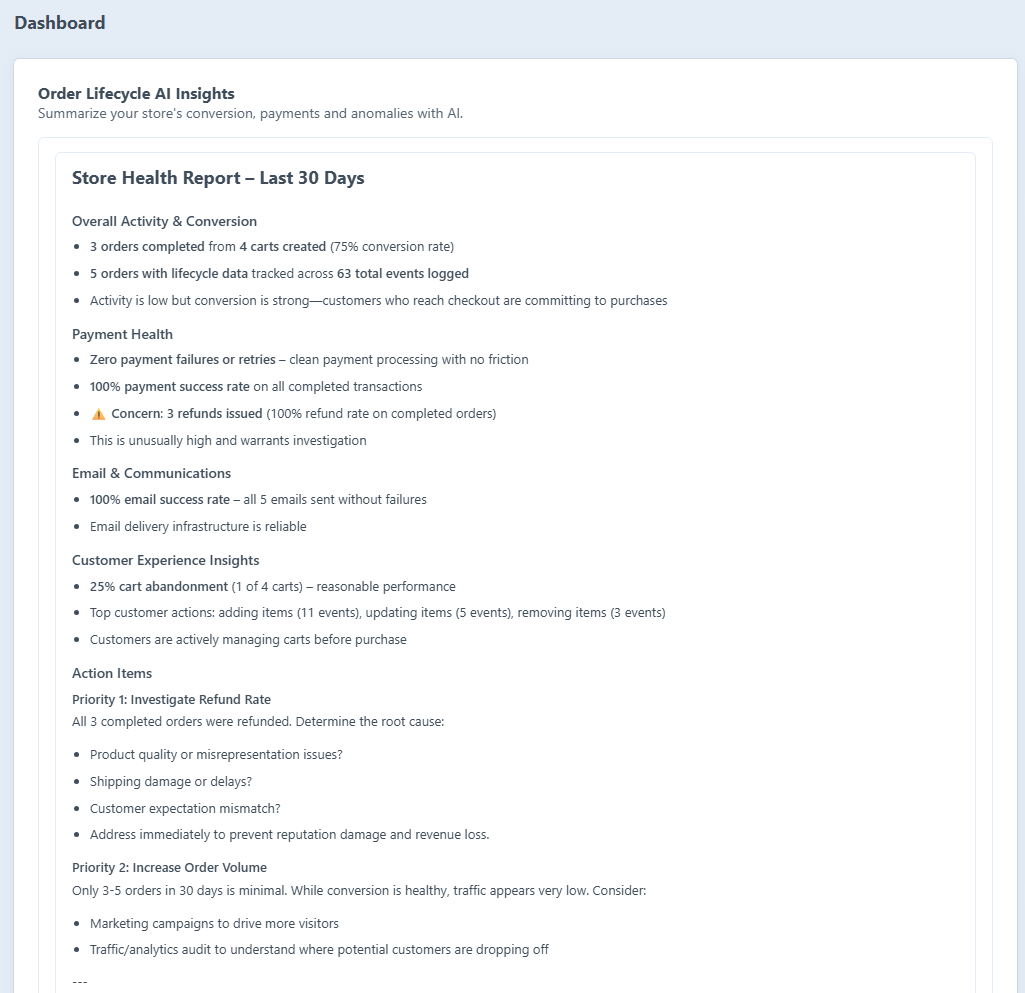
The Order Lifecycle AI Insights dashboard widget is also there if you'd rather have AI insights on the main Craft dashboard. Add it via Dashboard → New Widget → Order Lifecycle AI Insights. In the widget settings you can choose the time window.
The widget and the AI Insights dashboard page share the same cached result - generating from either location updates the same cache entry. Generation runs inline and shows a loading state until Claude responds.
What Is Analysed
| Metric | Description |
|---|---|
| Carts created |
Unique orders with a cartCreated event in the period |
| Orders completed |
Unique orders with an orderCompleted event |
| Conversion rate | Orders completed / carts created |
| Abandonment rate | Carts that did not complete |
| Average cart value |
Mean totalPrice from orderCompleted snapshots |
| Payment attempts |
Total paymentAttempt events |
| Avg. payment attempts per order | Attempts / completed orders |
| Refunds |
Total paymentRefunded events |
| Coupons applied |
Total couponApplied events |
| Emails sent / failed |
emailSent and emailFailed counts |
| Email success rate | Sent / (sent + failed) |
| Top event types by volume | Top 8 event types ranked by count |
What Claude Responds With
Claude returns a store health report covering overall activity, conversion, payment health, email reliability, and specific recommendations. The response uses markdown formatting - section headers, bold key figures, and bullet lists - which gets rendered in the dashboard and widget. Results are stored in the application cache, keyed by store and time window, so each store keeps its own insights on a multi-store setup.
Customising Prompts
Both prompts can be overridden in Settings → Order Lifecycle → Integrations → AI Prompt Customisation, or via config/order-lifecycle.php. Leave a field blank to stick with the built-in default.
Use {placeholder} tokens anywhere in your prompt text - they're swapped out for live data before the request is sent to Claude.
Per-Order Prompt Tokens
| Token | Example value | Description |
|---|---|---|
{total} |
99.99 EUR | Order total and currency |
{status} |
processing | Order status handle |
{completed} |
yes / no | Whether the order is complete |
{customerType} |
guest /registered | Customer account type |
{totalEvents} |
14 | Total number of lifecycle events |
{duration} |
45 minutes | Time from first to last event |
{paymentAttempts} |
3 | Total payment attempts |
{paymentFailed} |
2 | Failed payment attempts |
{emailFailures} |
0 | Email delivery failures |
{statusChanges} |
2 | Number of status changes |
{lineItemChanges} |
3 | Line item additions, removals, updates |
{addressChanges} |
1 | Address set/removed events — includes initial address entry, not just edits |
{shippingChanges} |
1 | Shipping method changes |
{eventTimeline} | (multi-line list) | Full chronological event list with timestamps and messages |
Store Prompt Tokens
| Token | Example value | Description |
|---|---|---|
{days} |
the last 30 days / all time | The configured time window as a phrase |
{totalLogs} |
4821 | Total lifecycle events in the period |
{uniqueOrders} |
312 | Orders with at least one lifecycle event |
{cartsCreated} |
540 | Unique carts created |
{ordersCompleted} |
289 | Orders reaching completion |
{conversionRate} |
53.5 | Completion rate as a percentage |
{abandonmentRate} |
46.5 | Abandonment rate as a percentage |
{avgCartValue} |
75.50 EUR | Mean total of completed orders |
{paymentAttempts} |
310 | Total payment attempt events |
{avgPaymentAttempts} |
1.07 | Average attempts per completed order |
{refunds} |
8 | Total refund events |
{couponApplied} |
41 | Coupon applied events |
{emailsSent} |
867 | Emails sent successfully |
{emailsFailed} |
3 | Email delivery failures |
{emailSuccessRate} |
99.7 | Email success rate as a percentage |
{topTypes} | (multi-line list) | Top 8 event types ranked by volume |
Via config file
// config/order-lifecycle.php
return [
    '*' => [
        'anthropicApiKey' => '$ANTHROPIC_API_KEY',

        'orderInsightsPrompt' => 'You are a helpful assistant analysing an e-commerce order.

Order: {total} - {status} - Customer: {customerType}
Payment attempts: {paymentAttempts} ({paymentFailed} failed)
Timeline:
{eventTimeline}

Give one paragraph of plain advice for the store manager.',

        'storeInsightsPrompt' => '',  // empty = use built-in default
    ],
];
Privacy
AI insights send event data to Anthropic's API. The data included is:
- Event type names and timestamps
- Auto-generated event messages (e.g. "quantity increased from 1 to 3")
- Order totals and currency
- Customer type (guest / registered - not email addresses)
- Aggregate counts (no individual customer data in store insights)
If your lifecycle logs hold sensitive information in event messages or payloads, review those before turning this feature on. You can reduce PII in logs by disabling Collect User IP Address and Collect User ID in Settings → Order Lifecycle → Logging.
See Also
- Configuration - Full settings reference including
anthropicApiKey - Event Tracking - What events are recorded automatically
- Timeline View - Viewing the order event timeline
- Statistics - The store statistics dashboard and widget